Best Free Teleprompter App for Android in 2026
 Wendy Zhang · May 20, 2026 · 9 min read
The best free teleprompter app for Android is not a native app — it is a browser-based prompter that works in Chrome on any Android phone or tablet. The free teleprompter at teleprompter.works requires no download, no account, and no Play Store installation. Open it in your Android browser, paste your script, and scroll. If you need a native Android app with Camera mode, several third-party options on the Play Store can fill that role — this guide covers both.
Teleprompter-Scrolling Scripts — the native app with Camera mode, offline scripts, and voice commands — is available on iPhone, iPad, and Mac. It is not available on Android. This guide explains your best options for prompter use on Android and when to consider switching to an iPhone or iPad for heavier recording work.
Does a free teleprompter exist for Android?
Yes, with one important clarification. The best free option for Android is a browser-based tool, not a native Android app. The teleprompter.works browser prompter works on any Android device with a modern browser — no Play Store download, no account, and no cost. Open teleprompter.works/online in Chrome, paste your script, set your speed, and start reading.
The Teleprompter-Scrolling Scripts native app — which includes Camera mode, locally stored scripts, and offline access — is not available on Android. It is an iOS and Mac app available on the App Store for iPhone, iPad, and Mac. Android users who need those native app features will need to look at third-party Android script reader apps, which are covered later in this guide.
For most Android users who need a quick, reliable prompter for reading scripts — whether for Zoom calls, practice sessions, or recording with a separate camera app — the browser option at teleprompter.works covers the core need without any friction.
The fastest free teleprompter app for Android is already installed: it is your browser. Open teleprompter.works, paste your script, and you have a working prompter in under a minute.
How to use teleprompter.works as a free Android teleprompter
Setting up the free Android autocue app at teleprompter.works takes about sixty seconds. Here is the step-by-step process on any Android phone or tablet.
Step one: open Chrome on your Android device and go to teleprompter.works/online. The prompter interface loads immediately. There is no app to install, no account to create, and no permission dialog to dismiss.
Step two: tap the script editor area and paste or type your script. If you are copying from Google Docs, a notes app, or another document, paste the plain text directly. The prompter reads clean text — no formatting needed.
Step three: adjust scroll speed and text size. On a phone screen, increase the text size so the words are readable at arm's length while you hold the device or have it propped up in front of you. Set the scroll speed to match your natural speaking pace and do a short test run.
Step four: enter full-screen mode. On Android Chrome, tap the three-dot menu and select "Add to Home screen" or use the browser's full-screen option to eliminate browser chrome during your reading session. A full-screen prompter is easier to read and looks cleaner behind your camera if the screen is visible in the recording.
Step five: start scrolling and read. The script moves at your set speed. Tap the screen to pause, tap again to resume, and use the speed controls if you need to adjust mid-session.
Android teleprompter for video recording — what's possible in a browser
Using a browser-based scrolling script reader for video recording on Android is straightforward. Recording mode at teleprompter.works/online works in Chrome on Android: the script sits over the camera preview and you record in the same tab, so reading and filming happen in one place.
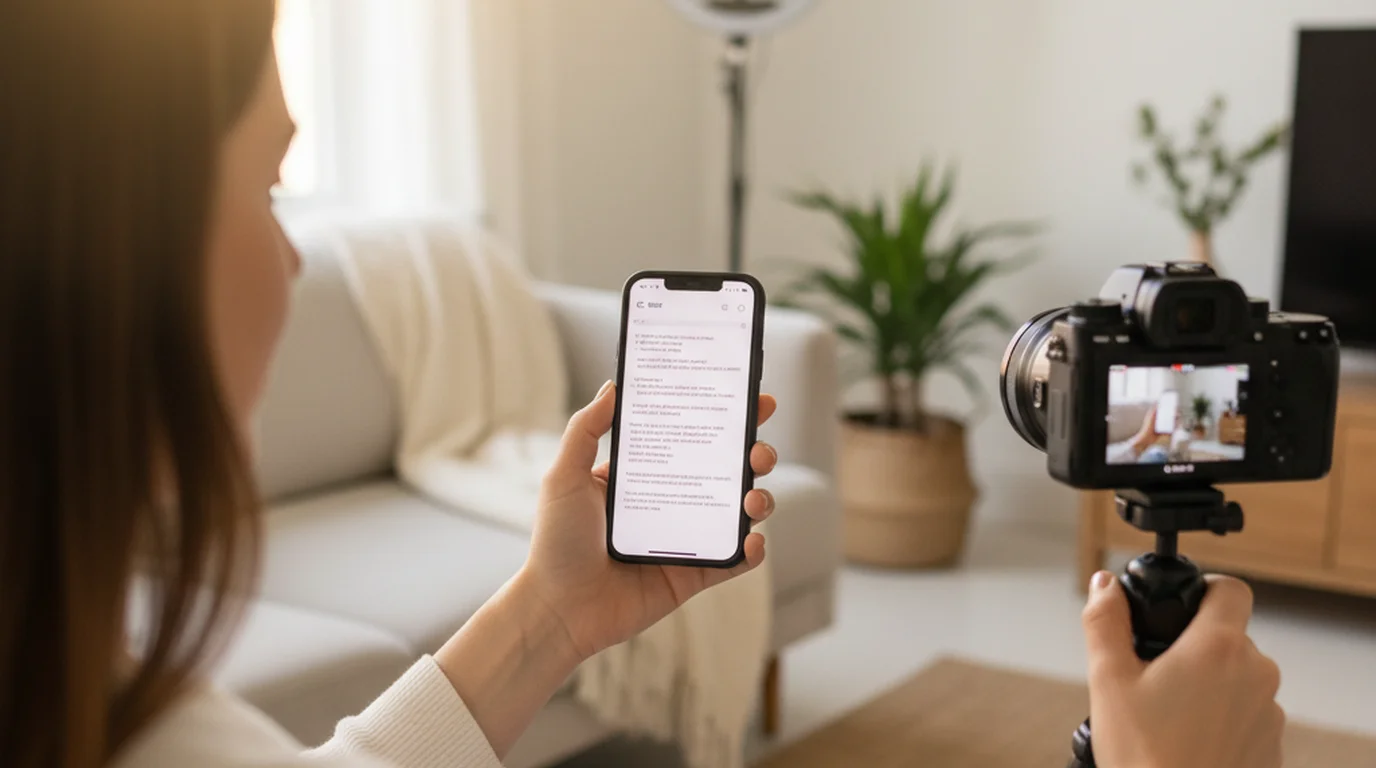
If you would rather record with the phone's own camera app — for stabilisation, or because you want the higher-quality sensor mode it exposes — the workflow becomes two apps: open the prompter in Chrome, start the scroll, then switch to the camera app and begin recording. You read from the phone or tablet screen (propped up or held at eye level) while the camera captures your delivery.
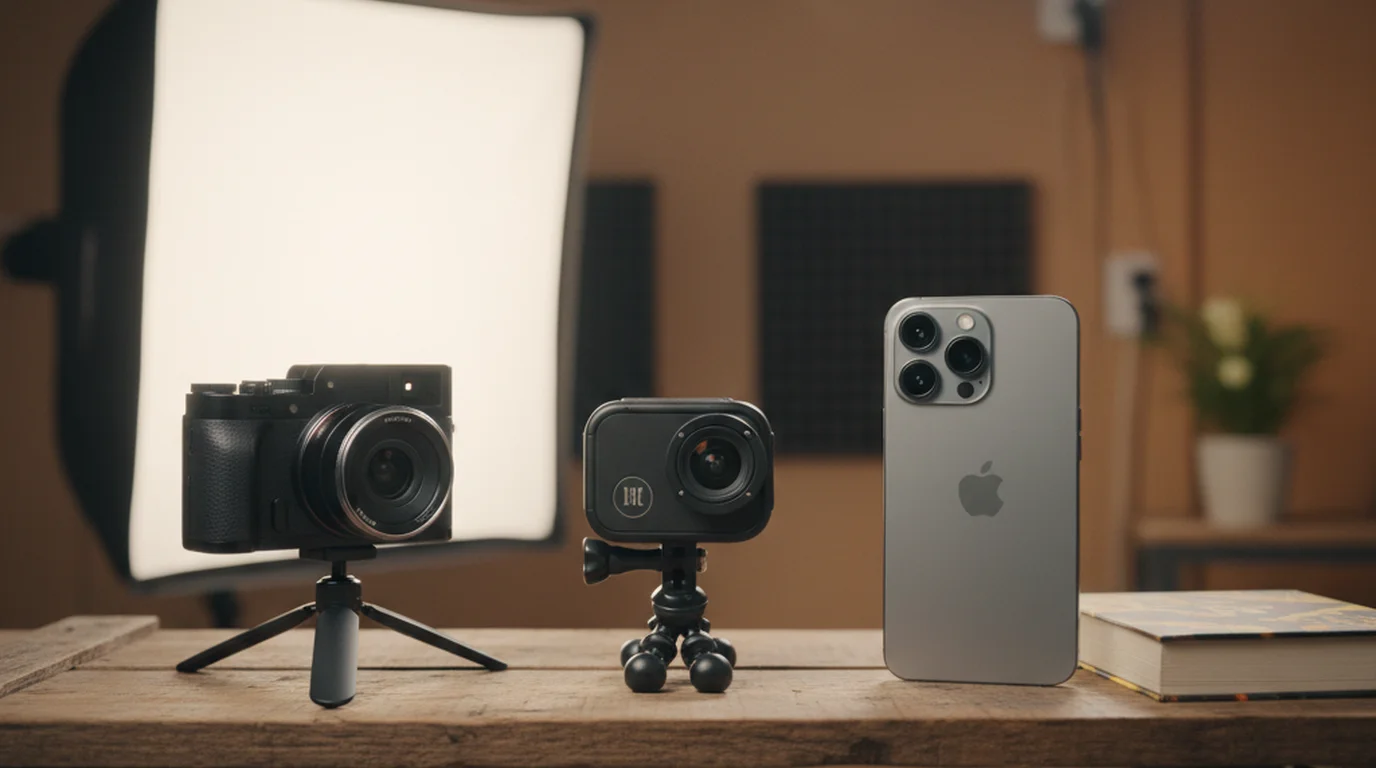
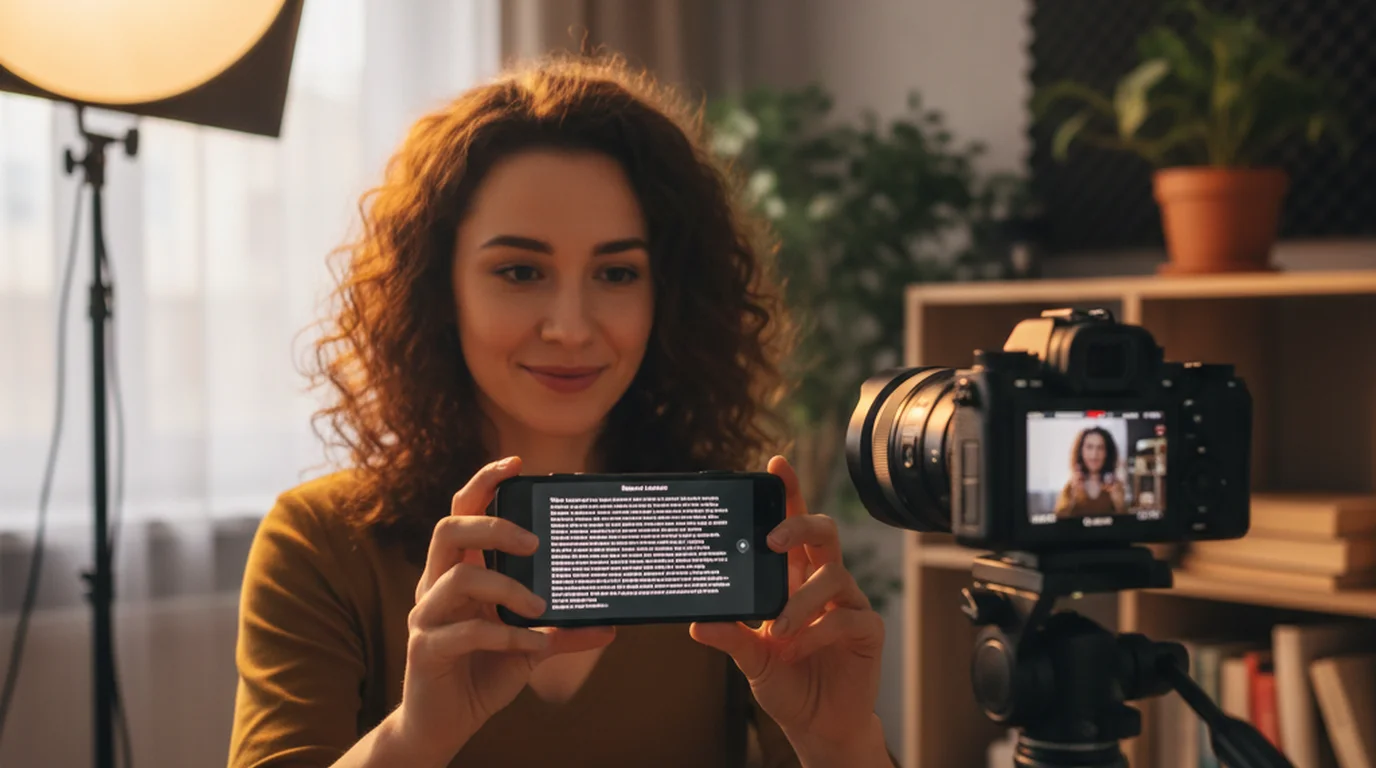
For Android recording, a practical physical setup helps. Prop your Android device on a stand or tripod-mounted holder at eye level, with the prompter scrolling. Place your recording camera — whether a separate phone, webcam, or DSLR — directly above or behind the Android screen so your eyeline stays close to the lens while you read. The closer the scrolling text is to the camera axis, the more natural your eye contact appears on camera.
For short-form content — TikTok-style vertical video, Instagram Reels, or YouTube Shorts — many creators simply use one Android device as the prompter while recording on another. The browser prompter runs on any device, so a spare tablet makes a good dedicated reading screen while your primary phone records. For a deeper look at free options across platforms, see our best free teleprompter app guide.
What Android teleprompter users miss vs. iOS/Mac
The browser prompter covers the core reading use case, but there are capabilities available on iPhone, iPad, and Mac through the native Teleprompter-Scrolling Scripts app that Android users do not have access to in a browser.
Offline use is the most significant gap. The browser prompter needs a connection to load the page. The native app stores every script on the device and opens with no network at all — which matters if you record in venues, classrooms, or anywhere the Wi-Fi is not dependable.
A persistent script library is the second gap. In the native app, every script you save is there the next time you open it, under the title you gave it. The browser prompter resets to a blank editor each session, so a script you use every week has to be pasted in every week. For creators working through course content, coaching programs, or a recurring video series, that adds up.
Voice mode is the third gap. The native app can scroll a script and save an audio file with no camera involved — podcast segments, voiceover passes, narration. There is no browser equivalent. The app also runs in its own environment: no other tabs, no browser chrome, and fewer system interruptions mid-take.
Android teleprompter setup tips
Getting a good result from a browser-based prompter on Android comes down to physical setup and a few settings adjustments. Here are the most important ones.
Use a phone stand or tablet holder. Holding an Android device while trying to read and record simultaneously leads to shaky footage and split attention. A basic phone stand or flexible tripod arm holds the device steady at eye level so you can focus on your delivery. Many options are available for under $15.
Increase text size beyond what feels comfortable at a close reading distance. The app's screen will be at arm's length or farther during recording. Text that looks appropriately sized when you are holding the phone close will be too small to scan quickly at a reading distance. Test your size setting at the actual distance you will use during recording.
Set scroll speed slower than you think you need. Most people over-estimate how fast they speak during a real recording session, especially when they are also focused on camera presence and delivery quality. Start slower and speed up based on your test run rather than the other way around.
Use Chrome's desktop site mode if the mobile interface feels cramped. In Chrome on Android, tap the three-dot menu and check "Desktop site" to load the full-width prompter interface. On a tablet, this usually gives you a better reading experience than the mobile layout.
Dim your screen brightness slightly if the screen is visible in your recording frame. A very bright screen behind your face can cause exposure issues in the camera — the camera may underexpose your face to compensate for the bright display. Reduce brightness until the screen is readable but not dominant in the frame.
When to use a dedicated iPad or iPhone instead
For occasional Android recording sessions, the browser prompter is a practical solution. But for creators who record frequently, the limitations of a browser-based scrolling script reader on Android add up. At a certain recording volume, switching to an iPhone or iPad for recording sessions — even if Android remains your primary device — makes practical sense.
The iPad is particularly well-suited for use as a prompter. The larger screen makes text easier to read from a distance, and the screen size means you can use a larger font without running out of visible text. For longer scripts — course modules, coaching content, webinar presentations — an iPad shows more text at once than a phone, giving you more context while reading and reducing the number of scroll cycles per paragraph.
Saved scripts and offline use are the clearest reasons to consider an iPhone or iPad for recording. If you shoot the same formats every week from the same scripts, or you film where the connection is not guaranteed, the native iPhone app removes the paste-every-time step and the dependency on the network entirely — with Camera mode doing the same script-over-camera job the browser does.
For coaches, educators, and founders who create video content as a regular part of their work, a dedicated recording device with a native script reader app tends to reduce the friction cost of each recording session. Less friction per session means more sessions get done — which is often the real bottleneck in a content creation workflow.
Other Android teleprompter options and what to watch for
If you need a native Android prompter app with features beyond what a browser can offer, several options exist on the Google Play Store. Here is a brief overview of the main ones and what to check before committing.
PromptSmart Pro is one of the more established Android autocue apps and includes voice-activated scrolling — the app uses voice recognition to pace the scroll to your actual speaking speed rather than a fixed rate. It has a paid tier for full features. Check current Play Store reviews for recent Android compatibility notes, as performance can vary across Android versions and device manufacturers.
Teleprompter Premium (by Selvy) is a dedicated Android autocue app with script import, remote control support, and adjustable display settings. For a full comparison of Android-specific options, see our best autocue app for Android guide. It has both free and paid versions. The free version typically includes the core prompter function with some feature limits.
Video Teleprompter Lite is a simpler option for straightforward script scrolling without a heavy feature set. Useful if you only need the basic prompter function and want a lightweight app without a large permission footprint.
What to watch for when evaluating any Android script reader app: check that it has been updated within the last six months (stale apps often have Android compatibility issues), read recent one-star reviews to find common problems, and check whether Camera mode is included in the free tier or locked behind a subscription. Many Android prompter apps place Camera mode behind a paywall, making the free version a browser-equivalent experience inside an app wrapper.
If you use an iPhone or iPad in addition to Android, the Teleprompter-Scrolling Scripts native app is free to download and use with Camera mode and offline use included, with no account.
Frequently Asked Questions
Is there a free teleprompter app for Android?
The best free option for Android is the browser-based prompter at teleprompter.works. Open it in Chrome on any Android phone or tablet, paste your script, and scroll — no download or account required. A dedicated native Android app from Teleprompter-Scrolling Scripts is not available; the native app supports iPhone, iPad, and Mac.
What is the best teleprompter app for Android?
For a free, zero-setup option, teleprompter.works works in any Android browser. For a paid native Android autocue app, options include PromptSmart Pro, Teleprompter Premium, and Video Teleprompter Lite on the Google Play Store. If you also use an iPhone or iPad, Teleprompter-Scrolling Scripts is free and includes Camera mode, offline use, and voice commands.
Can I record video with a teleprompter on Android?
Yes. Recording mode at teleprompter.works/online runs in Chrome on Android: the script overlays the camera preview and you record in the same tab. What the browser cannot do is keep your scripts between sessions or run without a connection — for that you need the native app on iPhone, iPad, or Mac.
Does teleprompter.works work on Android?
Yes. The free browser version at teleprompter.works works on any Android device with a browser. Go to teleprompter.works/online in Chrome or another Android browser, paste your script, set scroll speed and text size, and use it as a scrolling script reader.
Wendy ZhangWendy Zhang is the indie developer behind Teleprompter-Scrolling Scripts, which she built after cycling through teleprompter apps that were too heavy, too expensive, or dependent on a network connection to open. She writes about the mechanics of recording yourself — scroll pacing, script formatting, and the app decisions that decide whether a take survives.
Free teleprompter that works on any Android phone or tablet
Use the free browser-based prompter at teleprompter.works on any Android phone or tablet — no download, no account, no Play Store install. On iPhone, iPad, and Mac there is also a native app with Camera mode, offline scripts, and a permanent script library.
Use Free Online Teleprompter