
No account. Open and record.
There's no sign-up, no email confirmation, and no profile to create. Download the app or open the browser teleprompter, paste your script, and hit record. From zero to rolling in under two minutes.
Pricing
Use Teleprompter-Scrolling Scripts for free in the browser or as a native app on iPhone, iPad, and Mac. One project gives you unlimited video creation, so you can practice, adjust, and record as many takes as you need.
There's no sign-up, no email confirmation, and no profile to create. Download the app or open the browser teleprompter, paste your script, and hit record. From zero to rolling in under two minutes.
Every video you record in Camera mode saves directly to your camera roll with no overlay, no branding, and no badge added by the app. What you record is exactly what you keep.
Nothing you type is uploaded to a server. Scripts are stored locally — which means they're private by default, available offline, and not dependent on any cloud service staying online.
Why it works for real workflows
Most teleprompter apps make you re-calibrate scroll speed every time you change font size or layout. Teleprompter-Scrolling Scripts works differently: set your words-per-minute once to match your natural speaking pace, then adjust font size, line spacing, and text position freely. The app recalculates scroll pixel speed automatically for every layout change — the words arrive at the same pace no matter how you configure the screen.
This means your first recording session isn't wasted on re-learning settings. Set your WPM, find a font size that's comfortable to read without horizontal eye scanning, position the text near the camera lens, and record. The app handles the rest.
Camera mode opens the built-in camera and overlays your scrolling script on the live view. You read and record simultaneously on the same device — no switching between apps, no looking away from the lens. The script text appears on your screen only; the saved video contains only your delivery.
Prompter mode displays the script full-screen without recording — for use when a separate webcam, DSLR, or Zoom call is capturing you. Prop your phone near the webcam lens, run Prompter mode, and your eyes stay on the camera. Voice commands (next, previous, pause) let you control the scroll without touching the screen.
Voice mode records audio only while the script keeps scrolling — no camera, no video file. It suits podcast episodes, voiceover and narration takes, and singing along to your own lyrics, where a camera would be dead weight and a video file would be something to delete later. The same scroll speed, text size, and voice controls carry over from the other two modes.
Everything you need to sound confident on camera, with flexible controls for your reading habits.
Record video and read your script simultaneously. The text appears on your screen; the saved video contains only your delivery with no overlay.
Full-screen script display without recording. Position your device near the webcam and your eyes stay on the lens throughout the call or take.
Record sound without video while the script scrolls. Built for podcast episodes, voiceover takes, and singing along to your own lyrics.
Set your words per minute to match your speaking pace. Font size, line spacing, and text area changes are automatically factored in — scroll speed stays correct with every layout adjustment.
Say "next," "previous," or "pause" to move three lines or stop the scroll without touching the screen mid-take.
Nothing you type is uploaded to a server. No account, no cloud sync — what you write stays on your device and nowhere else.
Font size, text color, line spacing, text area size, and text area position — all customizable. Move the text as close to the camera lens as possible for natural eye contact on every take.
Recording, script display, voice control, and settings all run without Wi‑Fi or cellular. Film on location, on a plane, or anywhere the signal drops.
Real people, real recording workflows.
"I used to do 8 to 12 takes for anything scripted. With Camera mode I'm consistently done in 2 or 3. The script scrolls at my pace, my eyes stay on the lens, and I'm not mentally juggling what comes next. It's the single change that had the most impact on my production time."
 Ryan Kowalski
Video Producer
Ryan Kowalski
Video Producer
"I record YouTube, Reels, and TikTok — all from my iPhone on a tripod. I set my WPM once and just leave it. I can change font size or move the text area around without touching the speed setting and it stays calibrated to my voice. That detail alone makes it better than anything else I've tried."
 Maya Chen
Content Creator
Maya Chen
Content Creator
"I use Prompter mode for every Zoom presentation and board update. My phone sits just below the MacBook camera, the script scrolls at my pace, and the people on the call see eye contact the whole time. I've had three different colleagues ask what changed about my delivery — they notice, even if they can't name it."
 Natalie Brooks
Video Production Consultant
Natalie Brooks
Video Production Consultant
Common questions about pricing.
No account required — not for the browser version, not for the app. Open the free online teleprompter or download the app and start immediately. There's no sign-up screen, no email confirmation, and no login to maintain.
No. Videos recorded in Camera mode save directly to your camera roll with no overlay, no branding, and nothing added by the app. What you record is exactly what you get — clean video, ready to upload or share.
Yes. All core features work fully offline: Camera mode recording, Prompter mode script display, Voice mode audio-only recording, voice scroll control, and all settings. Scripts are stored on your device and never uploaded. The only thing that requires internet is the initial App Store download.
Under two minutes from download to first take. Download the app, paste your script, set scroll speed, and hit record. The first session will feel slightly mechanical — by the second or third session it becomes natural. Most users report their delivery improves noticeably within the first week of regular use.
Both support teleprompter display and video recording — the difference is project organization. The native app (iPhone, iPad, Mac) stores your scripts as named projects, keeps your recordings organized, and includes voice scroll control and full offline access. The browser version is plug-and-play: open it on any device including Windows and Android, record immediately, and go. It doesn't save scripts between sessions or organize past recordings into projects. Both are free with no watermark.
Yes. Voice mode is included at no cost like the other two modes, with no account, no watermark, and no export limit. Audio you record in Voice mode is saved to your device the same way video from Camera mode is saved to your camera roll, and nothing is added to the file by the app.
Practical guides for your first recording session and beyond.
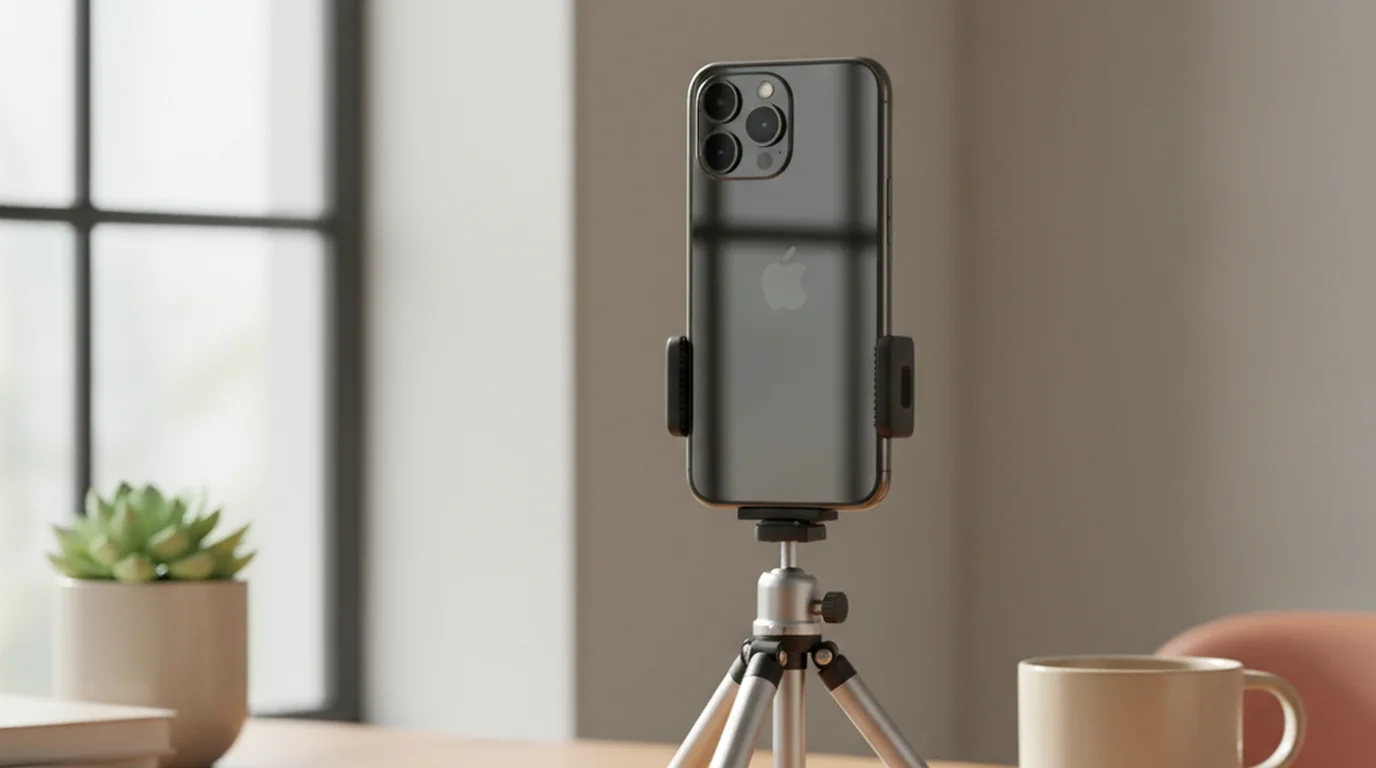

How to use a free teleprompter app: Camera mode for video, Prompter mode for live speaking and DSLR setups, and Voice mode for audio, all in one app.
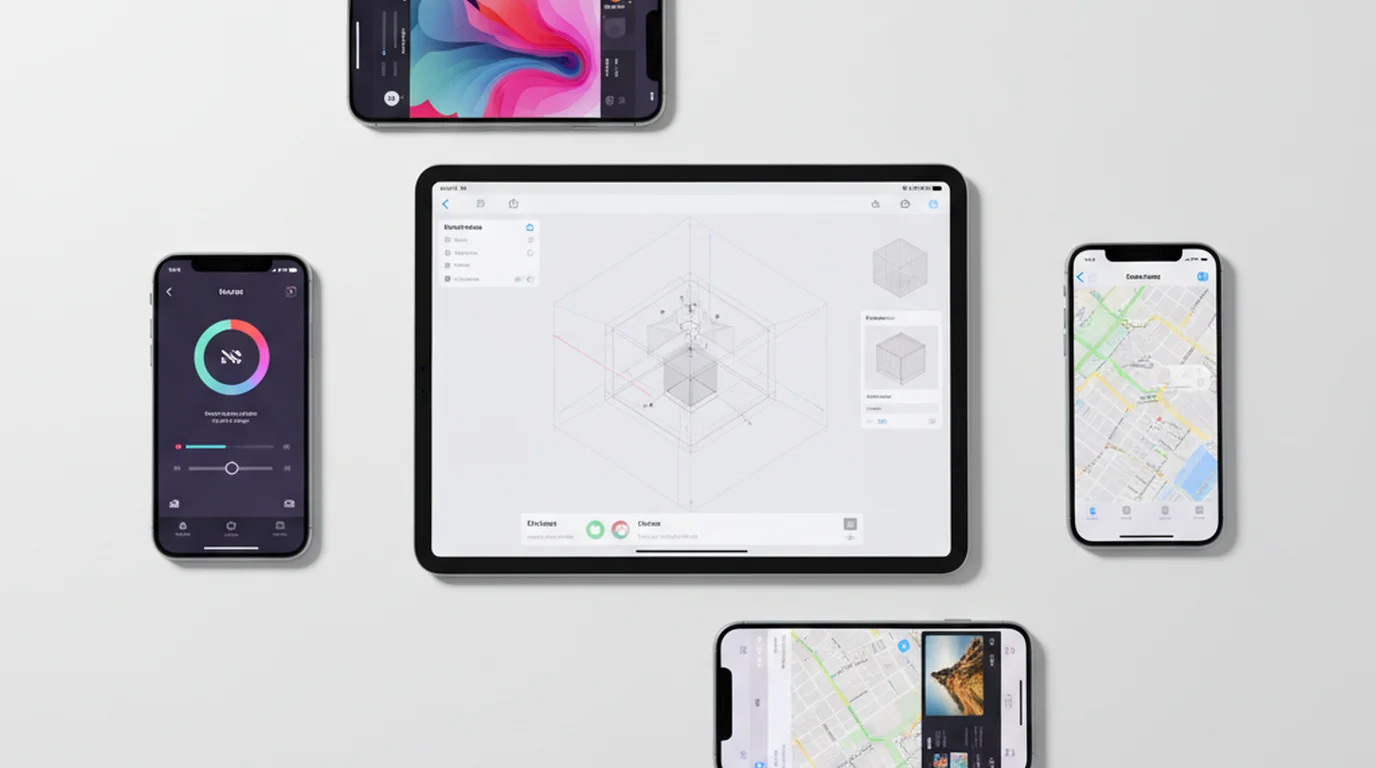
Seven teleprompter apps for iPhone and iPad compared: what each records for free, which add a watermark, what the paid plans cost, and who each one suits.
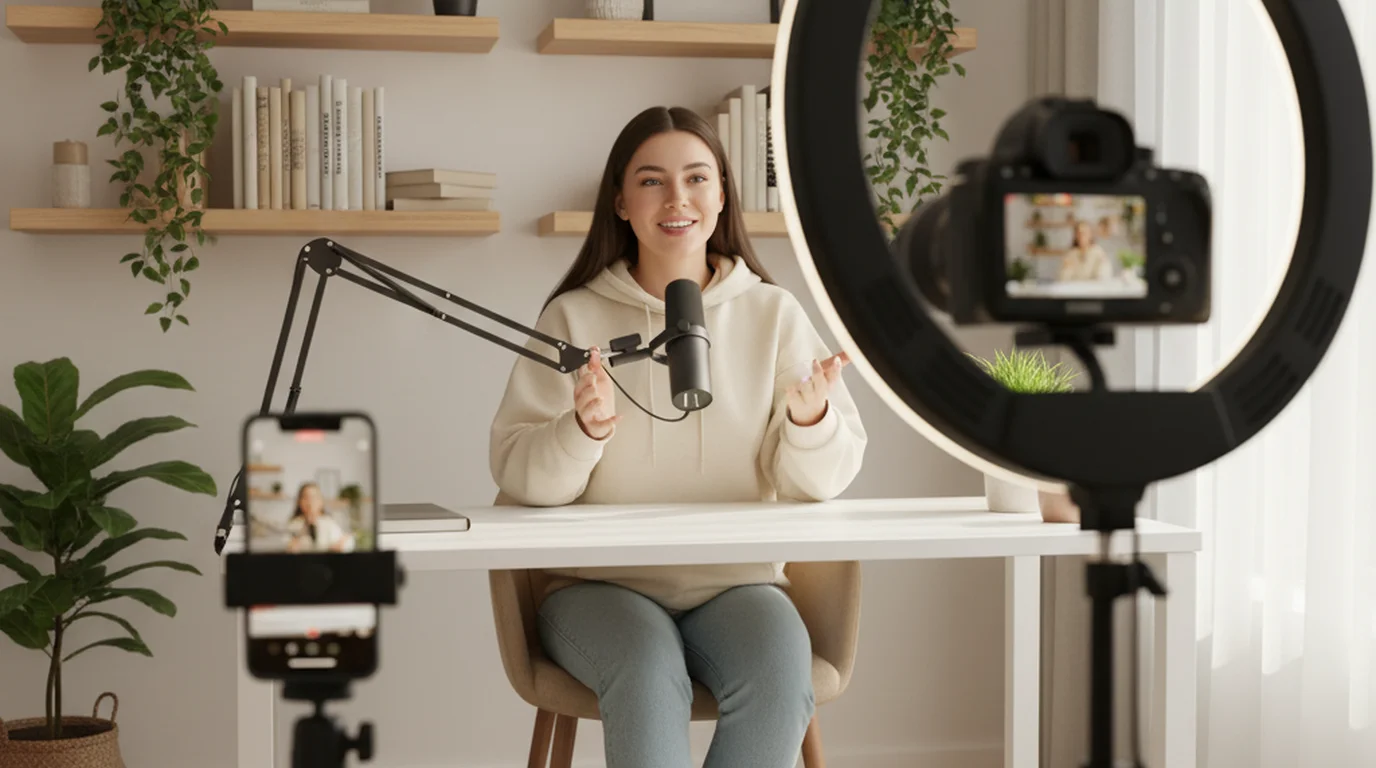
Set up a free teleprompter for YouTube videos on iPhone or Mac in under 5 minutes. Camera mode for iPhone recording, online teleprompter for webcam setups.
Download the app or open the browser version — paste your script, set your WPM, and record. Camera mode overlays your script on the live camera view. Prompter mode displays it for Zoom and external cameras. Both free, both without watermark.