Free Teleprompter App for MacBook and Mac Record, Present, Stay On Script

A lightweight teleprompter app for Mac that keeps scripts readable during calls, livestreams, recordings, and long-form video sessions. Open the floating window and your script keeps scrolling on top of Zoom, Teams, OBS or your slides, right under the webcam.

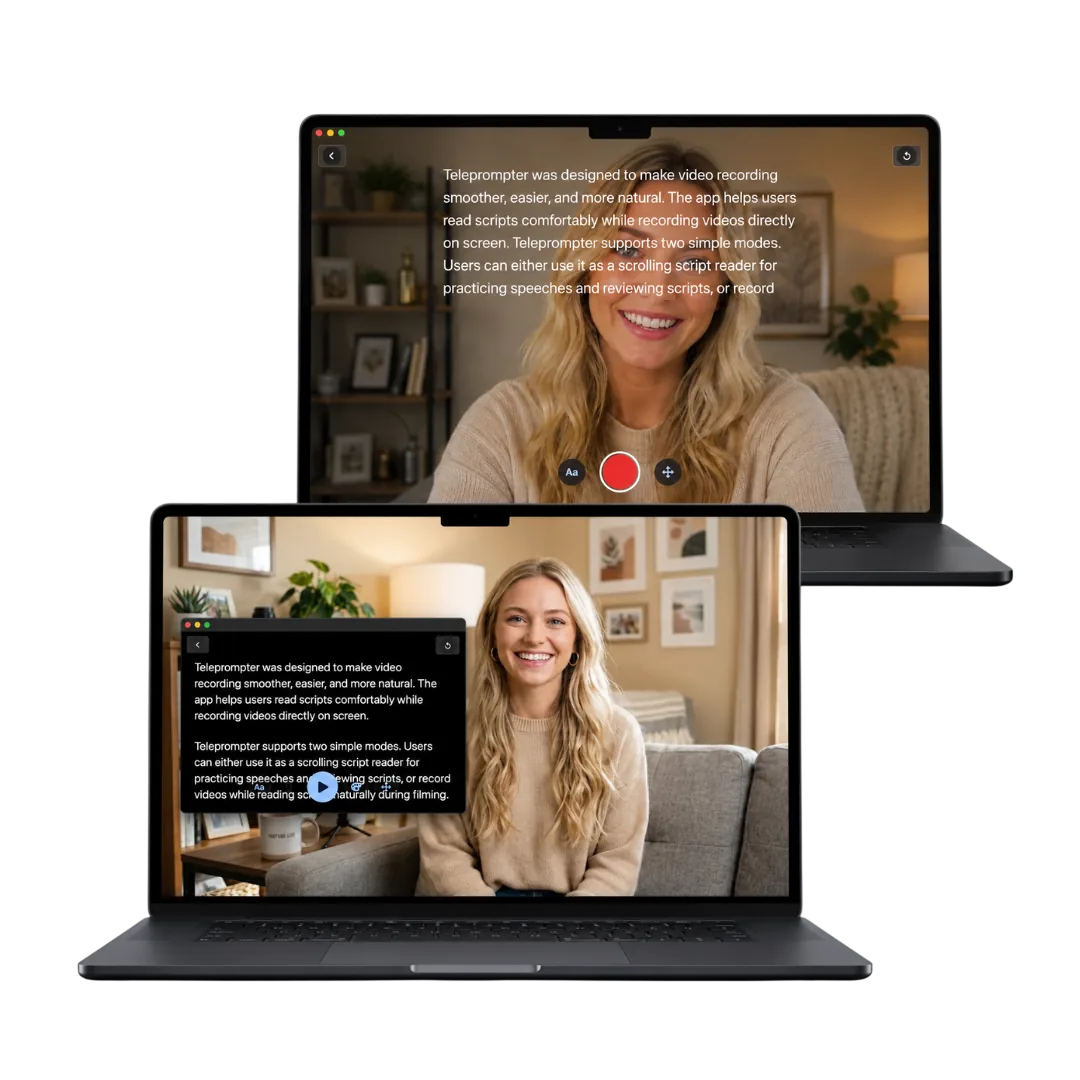
Mac teleprompter app showing Camera mode and Prompter mode on laptop screens

Best teleprompter for Mac for Zoom, streams, and desk recording

Use Prompter mode for script-only reading, Camera mode for desk recording with a live script overlay, or Voice mode to capture audio only.

Floating window for calls and streams

The floating window keeps your script scrolling above Zoom, Teams, Google Meet or OBS. Park it under the webcam; it stays in front, even over full-screen apps, while you keep clicking in the call.

Desk recording to camera

Stretch typography across the display for polished talking heads, course modules, and longer takes with legible type at arm length.

Second display and pro rigs

Pair the layout with a side monitor or dedicated teleprompter hardware when the production calls for a bigger read surface.

What matters in a teleprompter for Mac

A Mac teleprompter should support longer desktop sessions without covering the tools you need to present or record.

A script that stays on top

Keep scripts or talking points in a small floating window near your camera during calls, webinars, interviews, and livestreams, with play, pause and next-section buttons on the window itself. From Camera or Voice mode you can start and stop a recording from it too.

Desktop reading comfort

Adjust text size, text color, scrolling speed, text area size, and text area position for arm-length reading on a laptop, monitor, or second display.

Local-first recording workflow

Keep scripts available on your Mac so live sessions and desk recordings do not depend on a browser prompt.

Features

Everything you need to sound confident on camera, without memorizing every line.

  • Your iPhone as the camera

    Pick your iPhone in Camera mode and record over Continuity Camera at up to 1080p and 60 fps while the script stays on your Mac screen. See how to set it up.

  • Local-first and privacy minded

    Rehearsals and recordings stay on your Mac with a lightweight build that opens fast when you need it.

  • Prompter-only reading mode

    Keep lines in view during interviews, candidate conversations, streams, and webinars without opening the camera.

  • Import the script you already have

    Bring in a Word, PowerPoint, PDF, RTF, HTML, Markdown, TXT, or SRT/VTT file from the script editor or a project. PowerPoint decks arrive slide by slide with their speaker notes.

  • Record while you read

    Use Camera mode when you want the camera feed and teleprompter controls in one workspace, with the built-in camera, a USB webcam, or your iPhone.

  • Voice mode for audio-only takes

    Record audio without video while the script scrolls — for podcast episodes, voiceovers, and singing along to your own lyrics.

  • Mirror and flip for prompter rigs

    Reverse the text for a beam-splitter rig, or flip it for an upside-down mount — on the Mac screen or an external display.

  • Typography and colors you dial in

    Adjust text size, text color, scrolling speed, text area size, and text area position for desk or second display setups.

  • Pause and manual script control

    In Prompter mode, Camera mode, and Voice mode, pause scrolling or manually move the script up or down.

  • Scroll rhythm you control

    Pause on any line, return to an earlier sentence, or skip ahead while you steer the pace by hand.

What Mac users say

From reviewers to producers to educators.

★★★★★

"Native Mac apps that actually feel like Mac apps are rare. This one respects the platform — it's fast to launch, and window management works as expected."

Ryan Kowalski Ryan Kowalski iOS & macOS App Reviewer
★★★★★

"For longer-form client content I use my MacBook with an external camera. Having the prompter in a window I can size and position however I want, while recording in another app, is exactly the flexibility I need on a real production day."

Natalie Brooks Natalie Brooks Video Producer
★★★★★

"I script every course lesson in full and recording on Mac lets me keep my notes, browser, and prompter all visible at once. The scroll speed control is granular enough to match my natural teaching pace, which runs faster than most defaults."

Lauren Mercer Lauren Mercer Online Course Creator

Frequently Asked Questions

Practical answers for calls, offline use, desk recording, and natural delivery.

What is the best teleprompter for Mac?

Teleprompter-Scrolling Scripts covers the three things a Mac teleprompter needs: Camera mode to record while reading, a floating window that keeps the script on top of Zoom or other apps, and Voice mode for audio. Text size, colors, speed, and the size and position of the text area are all adjustable, and it's free to download with no account.

Can I use a teleprompter on Zoom or video calls?

Yes. Open the floating window and your script keeps scrolling in a small window on top of Zoom, Teams, Google Meet, OBS or recording software. Drag it right under the webcam; it stays in front without taking focus, so you can mute, share your screen or chat while you read.

Can the teleprompter stay on top of other windows on Mac?

Yes. The floating window stays above every other app, including full-screen apps and other desktops. You can move and resize it, play, pause or skip to the next section from the window, and go back to the full app with one click.

Does Teleprompter-Scrolling Scripts support Prompter mode?

Yes. Prompter mode shows scrolling text without opening the camera, so you can use Mac as a clean script display.

Can I use my iPhone as the camera on Mac?

Yes. Camera mode on Mac can record through your iPhone with Apple's Continuity Camera, at up to 1080p and 60 fps. Mount the iPhone near the top of the display, pick it from the camera menu, and read the script on the Mac screen.

Can I use the Mac teleprompter offline?

Yes. The script workflow is local-first, so you can rehearse and record without relying on a browser-based teleprompter.

What settings matter most on Mac?

Text area position and size, text color, line spacing, and scroll speed matter most for comfortable desktop reading.

Does the Mac app record audio only?

Yes. Voice mode on Mac records audio without opening the camera, while the script scrolls in the same window. It fits podcast episodes recorded at a desk, voiceover and narration passes, and any take where the video would be discarded. Camera mode remains the option when you want the recorded video as well.

Download for Mac

Check the App Store for supported macOS versions, then download. Prompter mode for calls and streams, Camera mode for desk recording.