Lyrics Prompter for Singers: How to Set Up a Free Lyric Teleprompter for Stage and Studio
 Natalie Brooks · Updated October 20, 2026 · 7 min read
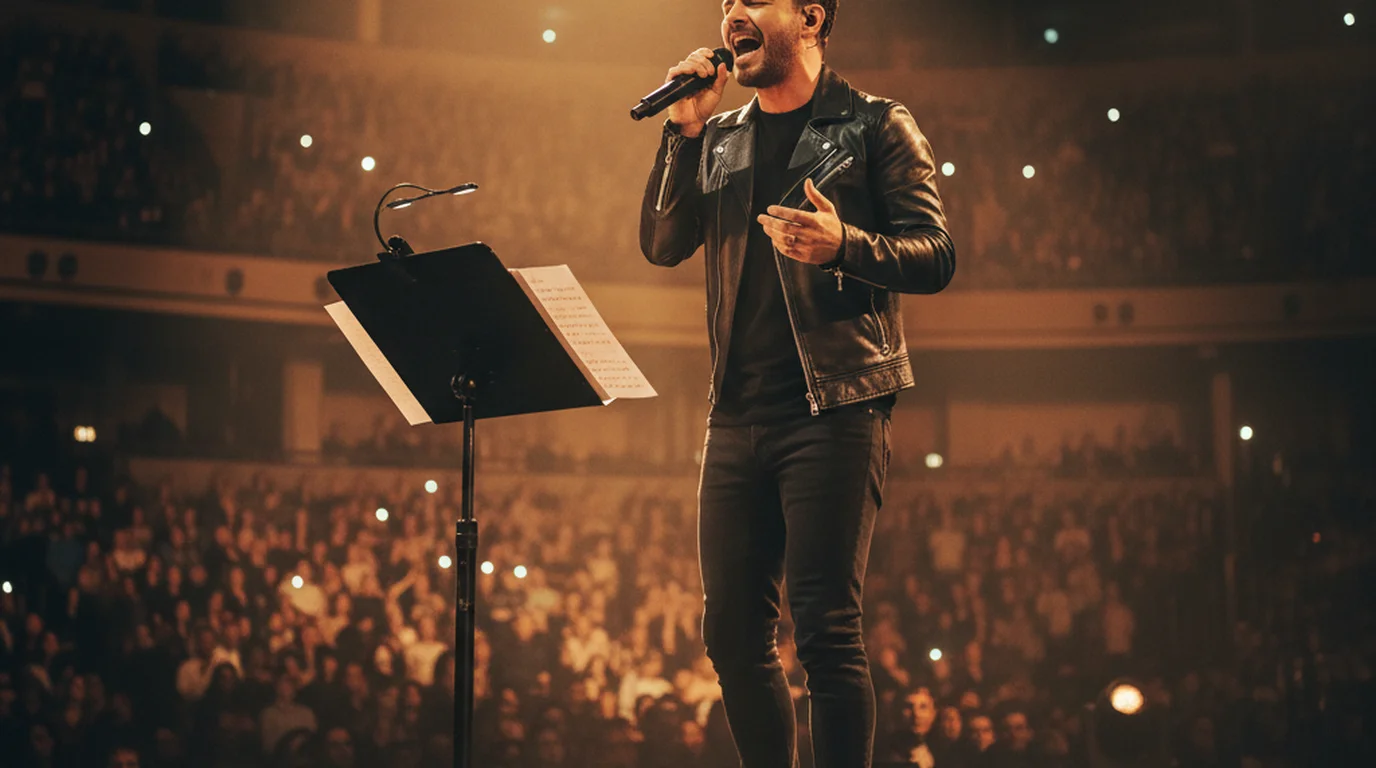
A lyrics prompter, or lyric teleprompter, is a screen that scrolls song lyrics at your singing pace so you can perform without memorizing every line. On stage, put a tablet on a music stand and run a free teleprompter app in Prompter Mode. In the studio, place it beside the mic and record vocals in Voice Mode.
The two jobs look similar but call for different setups. On stage the lyric screen has to be readable from a few feet away under lights, and it has to keep going when your hands are on a guitar. In the studio it sits inches from your face next to the microphone, and the question becomes what records the take.
How a Lyrics Prompter Works
You paste the lyrics into a teleprompter app, choose a text size, and set a scroll speed. When you press play, the words move up the screen at that steady rate, so the line you are about to sing is always in the same spot. Your eyes return to one place instead of hunting down a printed page, and nothing needs turning between verses.
Any teleprompter app can do this, because a song and a script ask for the same three things: large text, a controllable scroll, and hands-free operation. The difference with lyrics is the fixed tempo. A speaker can slow down to catch up with the text; a singer is locked to the band, so the scroll speed gets set to the song before you start.
Holding the words in memory competes with the performance itself. In a 2015 study in Frontiers in Psychology, Çorlu and colleagues had 12 professional operatic singers perform the same aria three times — once normally, then twice while doing a concurrent counting task. Under that extra load the singers rushed: 93.67 seconds with no added task, 89.64 under the light version, 88.88 under the heavy one. Most of the lost time came out of the pauses rather than the sung phrases. Reading the lyrics instead of recalling them frees that attention for timing and phrasing.
Stage Setup: A Lyric Teleprompter on Your Music Stand
For live sets, an iPad is the better screen: it is readable from farther away, and a tablet clamp holds it on a mic stand or music stand at chest-to-eye height. An iPhone works for a small acoustic set when it can sit close to you.
- Paste the set into one script. Put the songs in running order with the title on its own line before each one, so a glance tells you where you are.
- Open Prompter Mode. In Teleprompter-Scrolling Scripts for iPad, Prompter Mode fills the screen with the lyrics and records nothing, so the tablet works purely as the display while your mic and PA handle the sound. The screen stays awake while the lyrics scroll.
- Make the text big. The text size goes from 12 to 120 pt. For an iPad on a stand an arm's length or more away, start around 60–80 pt and go larger until you can read a line at a glance.
- Set the speed for the song. Speed is set in words per minute — the next section shows how to work out the number.
- Pick a control method. On-screen buttons pause, resume, restart, and jump forward or back. For hands-free control, turn on voice control in Prompter Mode and say next to jump ahead three lines, previous to go back, pause to stop and continue to resume. The commands are in English and listen through the device microphone, so try them at full band volume during soundcheck.
Place the screen slightly below eye level and in the direction you face the audience. A quick glance down reads as a natural look toward the floor monitor rather than reading.
Studio Setup: Recording Vocals With the Lyrics on Screen
In a recording session, the choice of mode depends on what is capturing the sound.
- With an interface and a DAW: run Prompter Mode on an iPhone or iPad beside the microphone. The app only scrolls the lyrics, so your recording chain stays exactly as it is.
- With just the iPhone or iPad: use Voice Mode. It records audio through the device microphone while the lyrics scroll on the same screen and saves an M4A file — useful for demos, writing sessions, harmony references, and practice takes.
- For a performance video: use Camera Mode. The lyrics scroll over the front-camera preview while the app records, and the saved video shows only you. Drag the text area right under the lens so your eyes stay close to the camera.
Keep the screen at the height of the microphone capsule and a little to one side, so reading does not pull your mouth off-axis. White text on a black background reads well in a dim booth. For the full recording workflow — Voice Memos settings, singing over a backing track in GarageBand, and when a lyric screen helps — see how to record a song on iPhone.
How to Match the Scroll Speed to a Song
Because the speed is set in words per minute (from 10 to 500), you can calculate a starting point instead of guessing:
- Count the words in the lyrics you will actually sing, including repeated choruses.
- Divide by the song length in minutes. A 3:30 song with 280 sung words gives 280 ÷ 3.5 = 80 words per minute.
- Run the song once with the prompter. If the line you need sits too low on the screen, raise the speed a few steps; if it runs ahead, lower it.
Long instrumental breaks are where a fixed scroll drifts. Leave a few blank lines where the solo sits, or tap pause during the break and resume on the next verse. A slightly fast scroll is easier to sing to than a slow one, because reading a line early feels natural, while waiting for it breaks the phrase.
Free Lyrics Prompter Options
- Teleprompter-Scrolling Scripts (iPhone, iPad, Mac): free to download and use, no account and no watermark. Prompter Mode for stage and studio, Voice Mode for audio-only vocal takes, Camera Mode for performance videos. Text up to 120 pt, speed in words per minute, voice commands in Prompter Mode.
- Free online teleprompter: runs in any browser on a laptop or tablet with no sign-up, and can flip the text horizontally or vertically for a beam-splitter teleprompter or a reflection screen.
- OnSong (iPad): a dedicated performance app built to store, organize, and perform a whole song library, with set lists and MIDI control. A good fit when you also need chord charts alongside the lyrics.
For a singer who wants the words in front of them and nothing else, a free teleprompter app is the fastest route: paste the lyrics, set the size and speed, and you are ready.
More Guides for Singers
For a screen-by-screen walkthrough of the app itself — formatting lyrics, iPhone versus iPad placement, and every voice command — read the teleprompter app guide for singers on iPhone and iPad. For capturing the song once you can see the words, the iPhone song recording guide covers Voice Memos and GarageBand step by step.
Frequently Asked Questions
What is a lyrics prompter?
A lyrics prompter, also called a lyric teleprompter, is a screen that scrolls song lyrics at a set speed so a singer can read the next line while performing. Most singers run one as an app on an iPad or iPhone placed on a music stand, a mic stand, or beside the studio microphone.
What is the best app for lyrics on stage?
For scrolling lyrics, a teleprompter app with a full-screen prompter view is the simplest setup. Teleprompter-Scrolling Scripts is free on iPhone, iPad and Mac: Prompter Mode scrolls your lyrics with text up to 120 pt and keeps the screen awake while it scrolls. For a full song library with chord charts and set lists, a dedicated music app such as OnSong is built for that job.
Is there a free lyric prompter for singers?
Yes. Teleprompter-Scrolling Scripts is free to download and use on iPhone, iPad and Mac, with no account and no watermark. The online teleprompter at teleprompter.works/online/ also runs free in any browser. Paste the lyrics, set the text size and scroll speed, and press play.
Can I control a lyric teleprompter hands-free?
Yes. In Prompter Mode, turn on voice control and say "next" to jump ahead three lines, "previous" to go back, "pause" to stop the scroll and "continue" to resume. The commands are in English and use the device microphone, so test them at stage volume during soundcheck. On-screen buttons cover the same moves.
Can I record vocals while reading the lyrics?
Yes. Voice Mode records audio through the iPhone or iPad microphone while the lyrics scroll on the same screen, and saves an M4A file. When an interface and a DAW are capturing the take, run Prompter Mode on the tablet so it acts purely as the lyric display.
Your Lyrics, Scrolling at Your Tempo
Teleprompter-Scrolling Scripts works for song lyrics in Prompter, Camera, and Voice modes — large font, smooth scroll, free on iPhone, iPad, and Mac.
Use Free Online Teleprompter Get the Free App
Natalie BrooksNatalie Brooks is a video producer who works as a one-person crew for independent creators, corporate teams, and online educators. She writes about home studio setups, creator gear, and the production decisions that never come up in sponsored unboxings.