Can I use a teleprompter on Windows or Android?
Yes. While the Teleprompter-Scrolling Scripts native app is available for iPhone, iPad, and Mac, the free browser teleprompter at teleprompter.works/online works on any device with a modern browser — including Windows PCs, Android phones, Chromebooks, and Linux. No download, no account, no installation required. Open the page, paste your script, and start scrolling.
Free browser teleprompter for Windows, Android, and any device
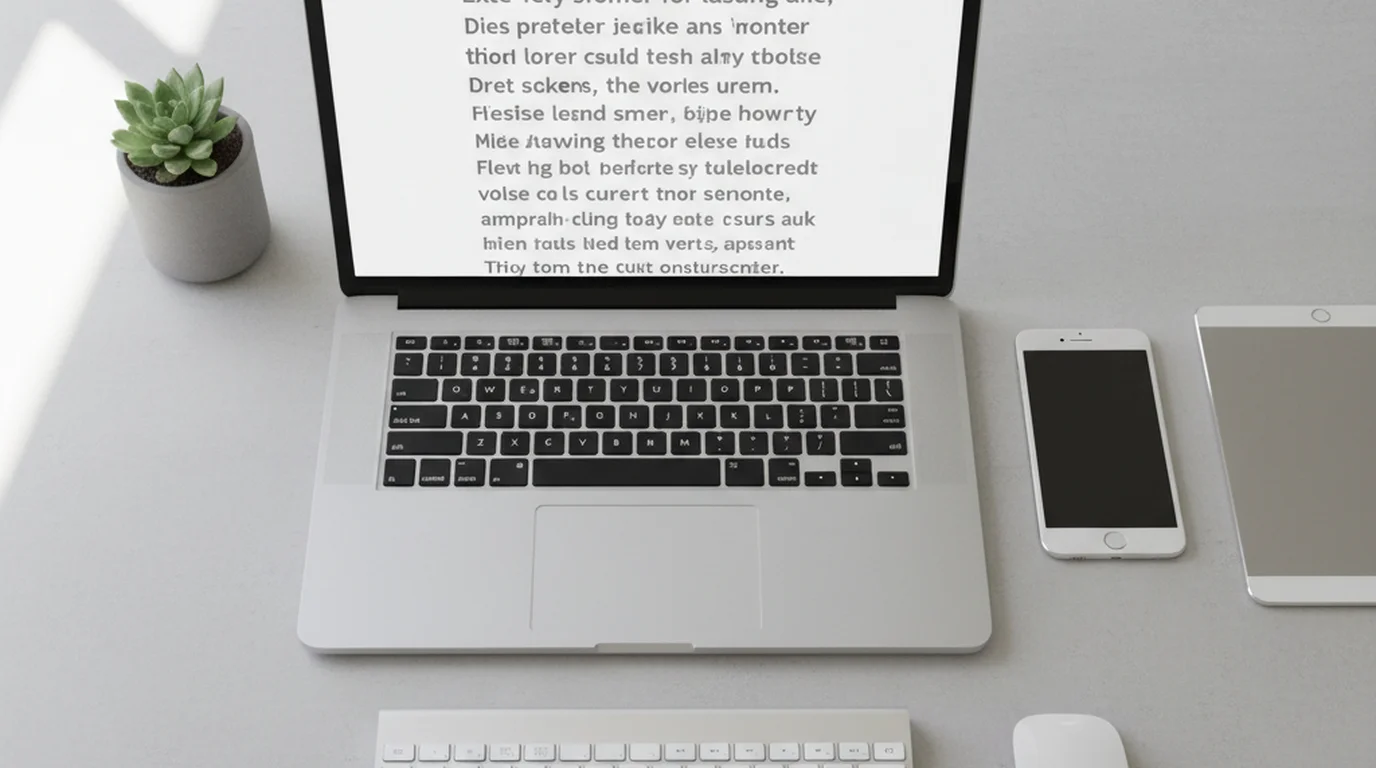
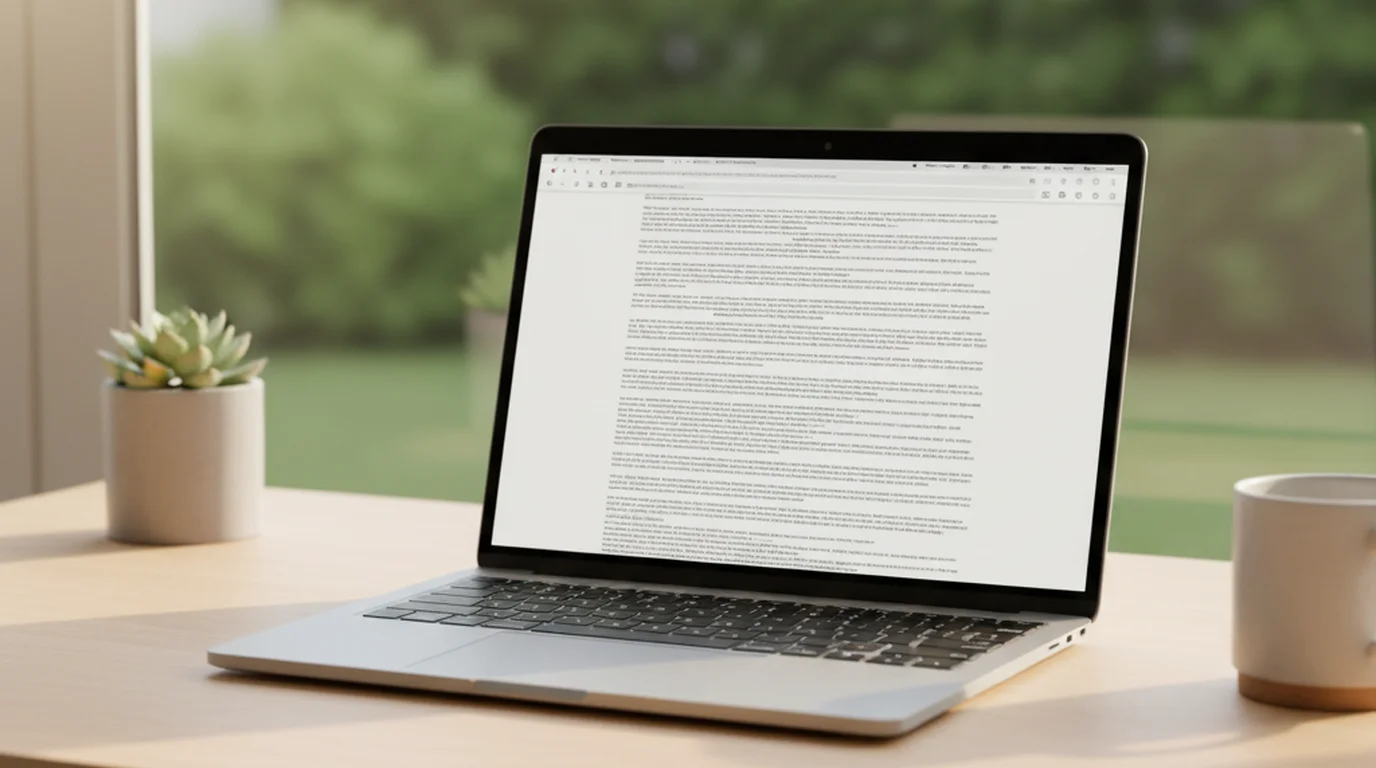
The free online teleprompter at teleprompter.works/online runs entirely in your browser. Open the URL in Chrome, Firefox, Edge, or Safari on any operating system and you have a fully functional teleprompter immediately — no App Store, no download, no account setup.
On Windows, open the page in Chrome or Edge and use full-screen mode (F11) to fill the screen with your scrolling script. On Android, open the page in Chrome on your phone or tablet and enable the full-screen view for an uninterrupted display. The same URL works on Chromebook, Linux, and any other platform with a modern browser.
The browser teleprompter is genuinely free — not a free trial or a limited version. Paste your script, set your speed, and scroll. There is no watermark on the display and no countdown to an upgrade prompt.
What the browser teleprompter includes
The browser version includes the core teleprompter features most users need:
- Script input — paste any amount of text directly into the editor.
- Adjustable scroll speed — set the words-per-minute rate to match your speaking pace.
- Font size control — scale text up or down for comfortable reading at your recording distance.
- Text color options — adjust text and background color for different lighting conditions.
- Full-screen display — expand the teleprompter to fill the screen for distraction-free reading.
- Pause and resume — stop the scroll at any time and restart from the same position.
The browser version supports both teleprompter display and video recording. It is built for quick, one-off sessions, while the native app keeps scripts and recordings organized in projects. It works as a plug-and-play tool — open it on any device, paste your script, record, and go. For ongoing work with named projects and archived recordings, the native app on iPhone, iPad, or Mac adds full project management, offline access, and voice control.
Native app on iPhone, iPad, and Mac
The native Teleprompter-Scrolling Scripts app adds:
- Camera mode — records video directly from the device camera while the script scrolls on screen. The text does not appear in the saved video.
- Voice commands — start, pause, continue, and jump forward or back by voice in Prompter mode.
- Voice mode and script import — record audio while the script scrolls, and import scripts from Word, PowerPoint, PDF or text files.
- Mac floating window — keep the script on top of Zoom, Teams or Meet during a call.
- Local script storage — scripts are saved to your device and available offline.
The native app is available for iPhone, iPad and Mac on the App Store. On Windows or Android, the browser teleprompter covers the essential use case: a scrolling script, with video recording in the browser or on a separate device.
The free online teleprompter works in any browser on Windows, Android, Mac, and Chromebook. No download required — paste your script and start scrolling.
Use Free Online Teleprompter Get the Free App